Astra Theme: A Beginner’s Guide to WordPress Website Design
Looking for a WordPress theme that is flexible, beginner-friendly, and designed with performance in mind? The Astra Theme is a popular option for building blogs, business websites, portfolios, and online stores. This guide explains what Astra does, how to install and customize it, and how to decide whether the free version is enough for your website.
Quick Answer: What Is Astra Theme?
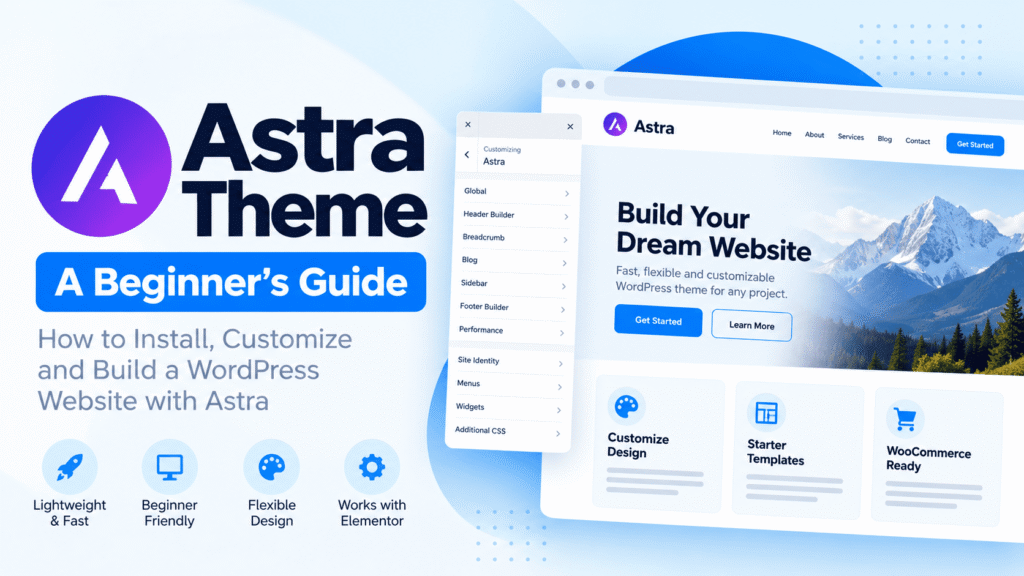
Astra is a lightweight WordPress theme that controls the general design and layout of your website. It offers customization options, works with popular page builders such as Elementor, and can be used for blogs, business websites, and WooCommerce stores. You can start with the free version and consider paid upgrades only if you need additional features.
1. What Is Astra Theme?
Astra is a WordPress theme developed by Brainstorm Force. A theme provides the visual foundation of a WordPress website, including elements such as the header, footer, typography, colors, and default page layouts.
Instead of building every design element from scratch, you can use Astra’s customization settings to establish a consistent appearance across your website. You can then use the WordPress editor or a compatible page builder to create individual pages.
Website Layout
Control the overall structure of headers, footers, content areas, sidebars, and page widths.
Design Customization
Adjust colors, typography, spacing, and other design settings to match your brand.
Blog Design
Customize how article pages, blog archives, and post information are presented.
Page Builder Support
Use compatible page builders to design pages beyond the theme’s standard settings.
You can explore the theme on the official Astra page on WordPress.org.
2. Is Astra Good for Beginners?
Astra can be a good starting point if you are new to WordPress because many common design changes can be made through visual settings instead of editing theme files. However, the exact experience depends on the editor, plugins, and features you choose to use.
Astra may be a good fit if you want to:
- Start a blog or content-focused website.
- Create a business website with service pages.
- Build a portfolio or personal website.
- Customize a WooCommerce store.
- Use Elementor or another compatible page-building workflow.
- Begin with a free theme before spending money on upgrades.
Choose a simple layout first. Set your colors, typography, header, and content width before adding decorative effects or installing more plugins. A consistent design is easier to maintain than a website with too many competing styles.
3. Key Features of Astra Theme
Visual customization
Astra includes settings for website colors, typography, layout widths, and other appearance options. Depending on your WordPress version and setup, you can access these controls through the WordPress Customizer and related theme settings.
Global colors and typography
A consistent color palette and type system help make your website look professional. Astra’s Global Palette features allow you to manage theme colors, while typography settings help establish a hierarchy for headings and body text.
Header and footer options
The header commonly contains your logo, navigation, and important links. The footer can contain secondary navigation, contact information, and legal pages. Astra provides controls for these areas, although available options depend on your version and plan.
Blog and archive layouts
If you publish articles regularly, your blog archive and single-post layouts are especially important. You can configure presentation options such as content width, featured images, post information, and sidebar layouts where supported.
Starter templates
Starter templates can give you a pre-designed starting point for a website. Depending on the template and the tools it uses, you may need compatible plugins or a particular editor to import and customize it.
WooCommerce compatibility
Astra can be used with WooCommerce to build an online store. Your final store features will depend on WooCommerce, your theme settings, extensions, and any paid features you choose.
Performance-focused design
Astra is designed to be lightweight, but your website’s actual speed depends on much more than the theme. Large images, excessive scripts, poorly configured plugins, hosting quality, caching, and page-builder content can all affect loading time.
Remember: A lightweight theme helps establish a good foundation. It does not automatically guarantee excellent Core Web Vitals or fast loading on every website.
4. Astra Free vs Astra Pro
You can begin with the free Astra theme. Paid Astra products add further customization options and features, depending on the plan or package. The right choice depends on what your website actually needs.
| Consideration | Astra Free | Paid Astra Options |
|---|---|---|
| Basic theme | Available free from WordPress.org | Uses the free theme as its foundation where applicable |
| Design controls | Core customization options | Additional controls, depending on the product |
| Advanced layouts | Limited to included features | Additional layout and design features may be available |
| Additional functionality | Core theme functionality | Depends on the selected plan or bundle |
| Best starting point | Beginners and simple websites | Websites that need specific premium capabilities |
Features and packaging can change. Check the current official Astra pricing page before purchasing. This comparison is a general guide, not a complete feature-by-feature list.
Start with Astra Free if it meets your requirements. Upgrade only when you can identify a specific feature you need and confirm that the paid product includes it. You do not need a premium theme simply to publish a useful blog.
5. How to Install Astra in WordPress
If you already have a WordPress website, you can install Astra from the dashboard. Before changing your active theme on an established site, make a backup and check whether your current design depends on theme-specific features.
Open your WordPress dashboard
Log in to your WordPress administration area. You generally need an administrator account to install and activate themes.
Go to Appearance → Themes
Open the Themes screen, then select the option to add a new theme.
Search for Astra
Enter “Astra” in the theme search field and check that you have selected the correct theme.
Install and activate
Click Install, then Activate. Your website will use Astra as its active theme.
Check the live website
Review your homepage, navigation, blog posts, archive pages, and mobile layout. Fix any differences before considering the change complete.
Important: Switching themes does not necessarily transfer all theme-specific layouts or settings. Keep a backup and inspect existing pages before making the change on a live business website.
6. How to Customize Astra
Once Astra is active, work through the main design settings in a logical order. Menu labels and available options can vary by Astra version, WordPress setup, and installed plugins.
Step 1: Set your brand colors
Choose a primary brand color, a supporting color, and neutral colors for backgrounds and text. Use the same palette across your navigation, buttons, links, and cards.
Step 2: Choose your typography
Establish a clear hierarchy between headings and body text. Use readable font sizes and sufficient line spacing, especially for long articles viewed on mobile devices.
Step 3: Configure the header
Add your logo and set up your main navigation. Keep important destinations easy to find, and check that the menu works properly on smaller screens.
Step 4: Configure your blog layout
Decide how article listings should appear. Consider featured image dimensions, post titles, excerpts, category labels, and whether a sidebar helps or distracts from the content.
Step 5: Review the footer
Add useful secondary links, contact information where appropriate, and links to your privacy policy and other required website pages.
Step 6: Test mobile responsiveness
Check your pages at mobile, tablet, and desktop widths. Look for overflowing content, small text, crowded navigation, clipped images, and tables that are difficult to use.
- Logo and navigation display correctly.
- Headings and paragraphs are readable.
- Buttons are easy to tap on mobile.
- Images fit their containers without distortion.
- Blog archives and individual posts look consistent.
- Important links work on desktop and mobile.
7. Can You Use Astra with Elementor?
Yes. Astra can be used with Elementor, a visual page builder for WordPress. The two tools serve related but different purposes.
Astra Theme
Provides the theme foundation, including many global design settings and standard website layout controls.
Elementor
Lets you visually design page content using widgets, containers, and layout controls. Some advanced capabilities require Elementor Pro.
For example, you might use Astra for your general website styling and Elementor to create a custom homepage or landing page. If your setup uses Elementor Theme Builder, review how its templates interact with Astra’s header, footer, and single-post layouts.
Decide which tool controls each part of your site. If both Astra and Elementor templates try to control the same header, footer, or article layout, you may see unexpected spacing or duplicate elements.
Learn more on the official Elementor Help Center.
8. Is Astra SEO-Friendly?
Astra includes features intended to support a well-structured WordPress website, but no theme can guarantee high search rankings. Search visibility depends on content quality, crawlability, technical setup, website performance, and whether your pages satisfy what visitors are looking for.
SEO practices to follow with Astra
- Write helpful content: Answer the reader’s question clearly and provide useful, accurate information.
- Use a logical heading structure: Give each page a clear main heading and organize the content with relevant subheadings.
- Optimize images: Use descriptive filenames and useful alternative text, and avoid unnecessarily large image files.
- Check mobile usability: Make sure navigation, text, and interactive elements work on smaller screens.
- Improve loading performance: Review hosting, caching, images, plugins, and scripts rather than blaming the theme alone.
- Set up SEO metadata: Use your chosen SEO plugin or workflow to manage titles, meta descriptions, canonical URLs, and other relevant metadata.
- Keep URLs stable: Avoid changing established URLs unnecessarily. If a URL must change, plan an appropriate redirect.
Google’s guidance explains how to create people-first content in its official documentation: Creating helpful, reliable, people-first content.
For existing websites: If you change themes or templates, verify your canonical URLs, structured data, internal links, page titles, and indexing settings after the change. Preserve existing SEO value wherever possible.
9. Common Astra Theme Problems and Solutions
My website looks different after activating Astra
Review your header, footer, menus, widgets, and page layouts. Your previous theme may have provided features that Astra handles differently. Restore missing settings and test important pages before making further changes.
My Elementor page has unexpected spacing
Check the page layout settings, container widths, theme content settings, and Elementor template assignments. Also inspect parent containers for padding or margins that may affect the page.
My website is still slow
Test the actual page using a performance tool. Check large images, unnecessary plugins, third-party scripts, fonts, caching, and hosting resources. Avoid installing several optimization plugins that perform overlapping tasks.
My header or footer appears twice
Check whether the theme and a page-builder template are both displaying the same area. Review your template conditions and disable the duplicate source only after confirming which version should remain.
My changes are not showing
Clear your browser cache and any active WordPress, server, or CDN cache. Confirm that you saved or published the changes and that you are viewing the correct page or template.
Change one setting at a time, then test the result. If the problem started after installing a plugin or changing a template, check that recent change first.
10. Latest Astra Theme Update: Version 4.14.0
According to Astra’s official changelog, Astra 4.14.0 was released on September 24, 2026. The release includes changes to the Global Palette and several fixes.
Highlights from version 4.14.0
- Custom Global Palette colors: Support for adding up to nine custom named colors to the Global Palette, with availability in supported editing and color-selection interfaces.
- Security fixes: The changelog lists three security-related fixes.
- WooCommerce fix: A fix related to duplicate cart refresh requests.
- Easy Digital Downloads fix: A fix for an unexpected blank gap.
- Additional fixes: Improvements related to Live Search, background CSS handling, author avatar alternative text, and smooth scrolling behavior.
For the complete details and any later releases, consult the official Astra changelog and updates.
Before updating: Back up your website, review the release notes, and test important pages afterward. If your site is business-critical, test updates on a staging site when possible.
11. Frequently Asked Questions
Is Astra Theme free?
Yes. Astra has a free version available through WordPress.org. Paid Astra products provide additional features and customization options, depending on the package.
Can I use Astra for a blog?
Yes. Astra can be used for blogs and content-focused websites, with options for configuring blog archives and individual post layouts.
Can I use Astra with Elementor?
Yes. Astra works with Elementor, allowing you to use the theme for the website foundation and Elementor for visual page design. Check your template settings to avoid duplicate headers, footers, or layouts.
Is Astra good for SEO?
Astra provides a foundation for building a structured website, but rankings are not guaranteed. Content quality, technical SEO, performance, accessibility, and user needs also matter.
Does Astra automatically make a website fast?
No. Astra is designed to be lightweight, but performance depends on your hosting, images, plugins, scripts, caching, and how your pages are built.
Should I buy Astra Pro as a beginner?
Not necessarily. Start with the free theme and identify your requirements first. Purchase a paid option only if the features included in the plan solve a real need.
Where can I find official Astra tutorials?
Visit the Astra documentation for installation, customization, and troubleshooting guidance.
Final Thoughts: Should You Use Astra Theme?
Astra is worth considering if you want a flexible WordPress theme for a blog, business website, portfolio, or online store. Its customization options and compatibility with popular page builders give beginners a practical starting point without requiring them to code every design element.
The best approach is to start with a simple design, customize the essentials, and add features only when necessary. Pay attention to content quality, mobile usability, accessibility, and actual performance rather than relying on theme features alone.
If the free version meets your needs, there is no reason to upgrade immediately. Build your website first, test it carefully, and invest in additional features only when they provide clear value.
Ready to Build Your WordPress Website?
Explore official documentation, test your theme settings, and build a website that is easy to navigate, maintain, and use on any screen.
Explore WordPress Guides →Last reviewed: October 13, 2026 · Topic: WordPress Themes & Website Design