A WordPress website needs regular maintenance to remain secure, fast, reliable, and useful to visitors. Whether you run a business website, blog, portfolio, affiliate website, or online store, publishing content and installing plugins is not enough to keep your website healthy.
Outdated software, failed backups, unnecessary plugins, broken links, and performance issues can affect your website over time. With a consistent maintenance schedule, you can identify problems early and reduce the risk of downtime or data loss.
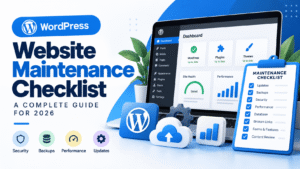
This WordPress Maintenance Checklist explains what to check, how to perform essential maintenance tasks, and how to organize your work throughout 2026.
Quick Answer
A WordPress maintenance checklist should cover software updates, backups, security, uptime, performance, database housekeeping, forms, links, and recovery testing.
- Weekly: Check updates, backups, security alerts, and availability.
- Monthly: Test forms, review speed, and find broken links.
- Quarterly: Audit users, plugins, database health, and recovery procedures.
- Annually: Review hosting, renewals, privacy practices, and website goals.
High-traffic websites and online stores may need more frequent backups and monitoring.
Why Is WordPress Website Maintenance Important?
Improve Security
Current software, strong authentication, and appropriate access permissions help reduce exposure to known vulnerabilities.
Prevent Data Loss
Complete, independently stored backups give you a recovery option after failed updates, accidental deletions, or security incidents.
Maintain Performance
Regular checks help identify oversized images, slow pages, excessive scripts, and hosting resource problems.
Protect User Experience
Working links, forms, navigation, and page layouts help visitors complete important tasks without unnecessary frustration.
Maintenance also supports technical accessibility and search visibility. However, maintenance alone does not guarantee higher search rankings.
1. Back Up Your Entire WordPress Website
A complete WordPress backup normally includes two components:
- Website files: WordPress files, themes, plugins, uploads, and relevant configuration files.
- Database: Posts, pages, users, settings, and other database-stored information.
A files-only backup may not preserve your database, while a database export does not include every uploaded image or theme file.
How to Maintain WordPress Backups
- Open your hosting control panel and review its backup tools.
- Check when the most recent successful backup was created.
- Confirm that both files and the database are included.
- Keep an additional copy in a separate, secure location.
- Test restoration in a staging environment periodically.
Recommended frequency: Weekly backups may suit a small blog. An active WooCommerce store or frequently updated website may need daily or more frequent backups.
A backup stored only on the same hosting account may be lost if that account becomes inaccessible or compromised.
2. Update WordPress Core, Themes, and Plugins
Updates can contain security fixes, bug fixes, compatibility improvements, and new features. Your update checklist should include:
- WordPress core
- Active themes
- Installed plugins
- Required translations
- PHP compatibility and hosting requirements where applicable
How to Update WordPress Safely
- Create or verify a recent backup.
- Review updates and compatibility notes.
- Use a staging site for important or complex websites.
- Apply updates through trusted sources.
- Test important pages and features afterward.
- Investigate failed updates and new errors promptly.
Important: Automatic updates can reduce maintenance work, but they do not remove the need to monitor update results. Do not postpone critical security fixes simply because your next routine maintenance session is several days away.
3. Review Website Security
Security maintenance should be ongoing. Review these items regularly:
- Use strong, unique passwords.
- Enable two-factor authentication where supported.
- Remove accounts that no longer need access.
- Assign the lowest appropriate user permissions.
- Review suspicious logins and unexpected administrator accounts.
- Keep security tools and website software updated.
- Verify that HTTPS works with a valid SSL/TLS certificate.
- Review hosting security alerts and malware notifications.
- Protect backups from unauthorized access.
Do You Need a WordPress Security Plugin?
A security plugin can provide features such as login protection, file monitoring, firewall rules, and notifications. However, multiple overlapping security plugins can create conflicts without providing meaningful additional protection.
Choose tools according to your needs and review the security features already included in your hosting plan.
4. Check Website Availability and Errors
Visit your homepage and important pages to check for:
- HTTP errors such as 403, 404, and 500 responses.
- Unexpected redirects and missing images.
- Broken layouts or publicly displayed error messages.
- Maintenance mode that does not clear.
- Hosting resource or disk-space warnings.
Uptime monitoring can notify you when your website becomes unavailable. Still, a successful page response does not guarantee that its contact form, checkout, or other functions are working.
5. Test Website Speed and Performance
Website speed can be affected by hosting resources, large images, JavaScript, CSS, fonts, database queries, caching, and third-party services.
- Test important pages on mobile and desktop.
- Review results in Google PageSpeed Insights.
- Check image dimensions and compression.
- Review unnecessary plugins and scripts.
- Verify caching and optimization settings.
- Investigate slow third-party embeds and redirects.
- Review hosting resource usage when slowness persists.
Understand Core Web Vitals
| Metric | What It Measures | Good Target |
|---|---|---|
| LCP | Loading performance | 2.5 seconds or less |
| INP | Responsiveness to interactions | 200 milliseconds or less |
| CLS | Visual stability | 0.1 or less |
Google evaluates these metrics using real-user data at the 75th percentile, with mobile and desktop assessed separately. Use performance tests to identify issues, then measure the result after making changes.
Practical tip: Avoid installing several caching plugins that perform the same tasks. Overlapping optimization settings can break layouts, scripts, or other features.
6. Clean Up Plugins, Themes, and the Database
Remove Unnecessary Plugins and Themes
Review installed software and identify components that are no longer needed. Before deleting anything, confirm that it does not support a page builder, custom post type, form, payment process, or other important feature.
- Identify unused or duplicate functionality.
- Check plugin and theme dependencies.
- Create a backup before significant cleanup.
- Remove unnecessary components.
- Test important features afterward.
Optimize the WordPress Database Carefully
Long-running websites may accumulate spam comments, revisions, expired transients, and records left by plugins.
- Remove spam comments and empty the trash when appropriate.
- Review excessive post revisions.
- Identify expired transients and unnecessary plugin data.
- Monitor database size and hosting resource limits.
- Back up the database before significant cleanup.
Aggressive database cleanup can cause problems. Avoid SQL commands from unverified tutorials and never delete records without understanding their purpose.
7. Fix Broken Links and Test Website Features
Broken links and malfunctioning buttons can prevent visitors from finding information or completing important actions.
Check Internal and External Links
- Find links pointing to deleted pages.
- Check outdated external references.
- Test navigation menus and buttons.
- Check for broken image links and redirect chains.
- Use relevant 301 redirects when pages have permanently moved.
Do not redirect every missing URL to the homepage. A redirect should lead to a relevant replacement whenever one exists.
Test Forms, Buttons, and Integrations
| Website Type | Features to Test |
|---|---|
| Business website | Contact forms, phone links, inquiry buttons |
| Blog | Search, category navigation, comments |
| Affiliate website | Outbound links and tracking |
| WooCommerce store | Cart, checkout, payment integrations, order emails |
| Membership website | Registration, login, access permissions |
| Learning website | Enrollment, lessons, quizzes, progress tracking |
Submit a test form and confirm delivery. For payment integrations, use a supported test mode rather than placing unnecessary live transactions.
8. Review Content, Search Visibility, and Media
Review Published Content
Older articles may contain outdated instructions, broken screenshots, obsolete recommendations, or links to unavailable resources.
- Verify factual accuracy and update obsolete instructions.
- Check internal links and important external references.
- Review titles, headings, and image alternative text.
- Check for accidental
noindexsettings on important pages. - Review relevant reports in Google Search Console.
Update content when you can make it more accurate or useful. Changing publication dates alone does not make an article meaningfully fresher.
Optimize Images and Media Files
- Resize images to suitable display dimensions.
- Use WebP or AVIF where your workflow supports them.
- Compress images without noticeably reducing quality.
- Use descriptive alternative text for meaningful images.
- Avoid unnecessarily large duplicate files.
Do not delete old media without checking whether published articles, featured images, page builder templates, or social previews still use it.
9. Audit Users, Hosting, and Privacy
Review Users and Permissions
Remove accounts that no longer need access, reduce excessive privileges, and investigate unfamiliar accounts or unexpected role changes. Content writers generally do not need administrator permissions.
Check Domain, SSL, and Hosting
- Confirm that your domain registration is active.
- Record hosting and domain renewal dates.
- Verify SSL/TLS certificate validity and renewal.
- Confirm that DNS points to the intended hosting service.
- Monitor disk space and server resources.
- Make sure important hosting notifications reach an inbox you monitor.
Review Privacy and Compliance
If your website collects personal information, review your privacy policy, contact forms, newsletter consent, analytics, cookies, data retention, and third-party integrations.
Applicable requirements depend on your audience, data practices, and operating locations. A cookie banner alone does not guarantee compliance with the GDPR or other privacy laws.
10. Test Your Backup Restoration Process
A successful backup notification does not necessarily prove that all files are present or that the website can be restored. Test recovery periodically in a safe staging environment.
- Confirm that backup files can be accessed.
- Verify that the database can be imported.
- Confirm that WordPress connects to the restored database.
- Check themes, plugins, uploads, and important pages.
- Test critical functions after restoration.
- Document the recovery procedure and backup location.
WordPress Maintenance Schedule
Use this schedule as a starting point. Adjust it according to your website’s traffic, activity, and business importance.
Weekly
- Review updates.
- Verify backup status.
- Check security alerts.
- Visit key pages.
- Review errors and availability.
Monthly
- Test forms and buttons.
- Review page performance.
- Find broken links.
- Check storage and database usage.
- Review analytics and renewals.
Quarterly
- Audit plugins and themes.
- Review user permissions.
- Test backup restoration.
- Review database housekeeping.
- Audit older articles and integrations.
Annually
- Review hosting capacity and costs.
- Check domain and DNS configuration.
- Review design and mobile usability.
- Audit integrations and privacy practices.
- Update recovery documentation.
Remember: Critical security fixes, failed backups, and major outages should be addressed promptly. Do not wait for the next scheduled maintenance session.
How to Perform WordPress Maintenance Safely
Record the Current Website Condition
Check the homepage, important pages, navigation, forms, and business-critical features. Record existing errors before making changes.
Create a Fresh Backup
Verify that a complete backup exists before major updates, plugin replacements, or database changes.
Use Staging When Appropriate
Test significant changes on a separate copy of complex or business-critical websites. Protect staging from public access and prevent accidental live transactions or customer emails.
Apply Changes Methodically
Use trusted software sources and make changes in manageable groups. This makes it easier to identify the cause of an error if something breaks.
Test Important Features
Check page layouts, forms, images, downloads, integrations, and critical error reports after maintenance.
Document the Work
Record the date, changes, backup reference, test results, and unresolved problems. This helps with future troubleshooting.
Common WordPress Maintenance Mistakes
| Mistake | Better Approach |
|---|---|
| Updating without a backup | Verify a recent, usable backup first. |
| Ignoring failed updates | Investigate and resolve failures promptly. |
| Keeping unnecessary plugins | Remove components only after checking dependencies. |
| Installing overlapping optimization tools | Use a compatible, tested configuration. |
| Deleting database records blindly | Back up and understand the data first. |
| Assuming backups work | Test recovery periodically. |
| Ignoring mobile testing | Test important pages on mobile and desktop. |
| Making many major live changes together | Use staging and a clear rollback plan. |
Do You Need a WordPress Maintenance Plugin?
Not necessarily. Many maintenance tasks can be completed using the WordPress dashboard and your hosting control panel.
A plugin may be useful when you need a specific capability, such as automated backups, security monitoring, broken-link detection, image optimization, or database cleanup.
Before installing a plugin, check whether your host already provides the feature. Review compatibility, documentation, maintenance history, and overlap with existing tools.
The goal is not to install a plugin for every task. It is to build a reliable maintenance process with as few unnecessary moving parts as possible.
When Should You Hire a WordPress Maintenance Professional?
Routine maintenance is manageable for many website owners. Professional assistance may be appropriate when you encounter:
- A suspected malware infection or compromised website.
- A critical failure after an update.
- A backup that cannot be restored.
- A broken checkout or payment integration.
- Recurring database or server errors.
- A complex migration or infrastructure problem.
For a compromised website, changing a password or installing another security plugin may not be enough. A proper response can require investigation, containment, cleanup, credential rotation, and fixing the original vulnerability.
Frequently Asked Questions
How often should I maintain my WordPress website?
Review updates, backup status, and security alerts weekly as a starting point. Perform broader functionality and performance checks monthly, with deeper audits quarterly. Adjust the schedule to your website’s risk and activity.
Can I maintain my WordPress website myself?
Yes. Many owners can manage backups, updates, basic security checks, broken links, and content reviews. Advanced troubleshooting, malware remediation, and server-level changes may require professional assistance.
What is the most important WordPress maintenance task?
Reliable, restorable backups and prompt security updates are two of the highest priorities. Backups support recovery, while updates help address known software vulnerabilities.
Should I update WordPress plugins automatically?
Automatic updates can reduce workload. Combine them with reliable backups, update monitoring, and post-update testing. Consider staging for complex or business-critical websites.
Does website maintenance improve SEO?
Maintenance helps preserve technical accessibility, performance, working links, and content quality. These support search visibility, but maintenance alone does not guarantee better rankings.
What happens if I never maintain my WordPress website?
Outdated software, untested backups, broken links, security weaknesses, and malfunctioning features can accumulate, increasing the risk of downtime, data loss, and costly recovery work.
Is website maintenance included in WordPress hosting?
Some hosting plans include automatic backups, security scanning, or related services. Coverage varies, so check which tasks your hosting provider performs and which remain your responsibility.
Final Thoughts
A well-maintained WordPress website is easier to manage, more resilient when problems occur, and better prepared to serve visitors.
Build a consistent routine: verify backups, keep software updated, monitor security, test important functions, review performance, and document significant changes.
You do not need to complete every task in one sitting. Start with the weekly checklist and gradually incorporate the monthly, quarterly, and annual tasks that apply to your website.
Use this WordPress Maintenance Checklist as your ongoing reference throughout 2026, and adapt it as your website grows.
Keep Your WordPress Website Running Smoothly
Explore practical WordPress guides, troubleshooting tutorials, and website optimization tips from The Blue Anchors.
Explore The Blue AnchorsOfficial Resources
Use these documentation sources for further guidance on WordPress maintenance, security, and performance.
Editorial note: Maintenance requirements vary by hosting environment, installed software, website complexity, and business risk. Verify compatibility and backup availability before performing significant changes.