Elementor Page Builder: A Beginner’s Guide to Building WordPress Websites
Building a WordPress website does not always require writing code. With a visual page builder, you can design page layouts, add content, and customize your website while seeing changes as you work.
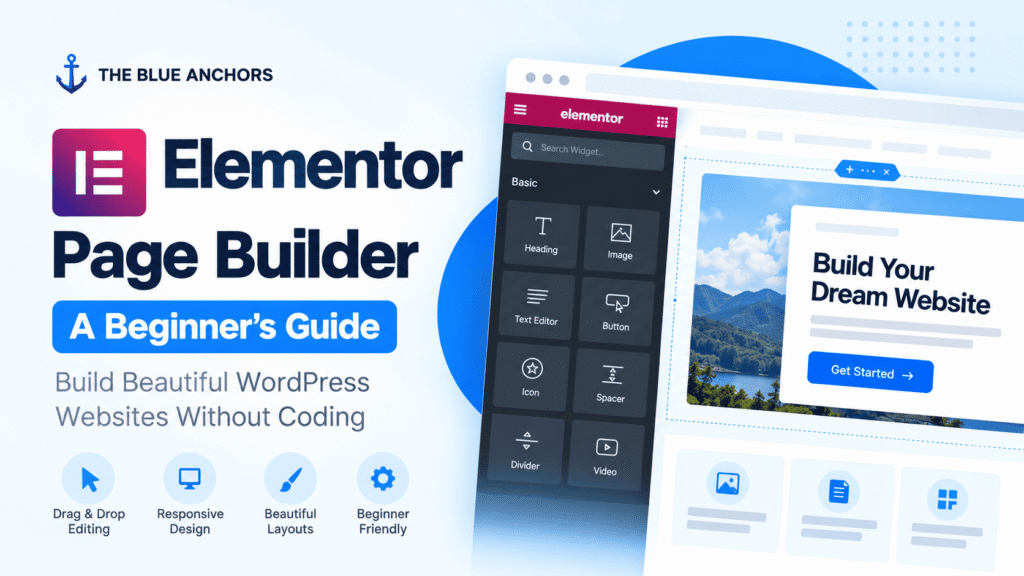
Elementor Page Builder is a visual website-building tool for WordPress. It allows users to create layouts using headings, images, buttons, and containers.
In this guide, you’ll learn what Elementor is, how it works, which features matter most, and how to get started building your first page.
Quick Answer: What Is Elementor?
Elementor is a visual page builder for WordPress that lets you design and customize pages through an editing interface instead of manually writing code for every layout. Its free version is a starting point for basic pages, while paid features support additional website-building workflows.
What Is Elementor Page Builder?
Elementor is a visual website builder for WordPress. Instead of relying entirely on the default WordPress editor or manually writing HTML and CSS, you can use its interface to arrange and style page elements.
For example, you can create a landing page with a headline, description, image, call-to-action button, and several content sections. You can adjust spacing, typography, colors, and alignment through the editor.
Start with one simple page. Learn how to arrange headings, text, images, and buttons before moving on to complex layouts.
How Does Elementor Work?
Elementor uses a visual editing interface. You work on a page and adjust its content and layout through the available controls.
- Open your WordPress dashboard.
- Create a new page or open an existing one.
- Launch the Elementor editor.
- Add headings, text, images, buttons, and other elements.
- Arrange the elements into a page layout.
- Customize the design and responsive settings.
- Preview the page on different screen sizes.
- Publish or update the page when it is ready.
The interface may differ depending on your Elementor version and whether your website uses Flexbox Containers, legacy sections, or other layout features.
Key Features of Elementor
Elementor includes tools for designing page layouts. The features available depend on your installed version, plan, theme, and setup.
Visual Editing
Add and arrange page elements, change text, replace images, and adjust design settings through the visual editor.
Widgets and Elements
Build pages using headings, images, buttons, icons, videos, and other supported widgets.
Layout Controls
Arrange content and manage width, spacing, alignment, direction, and gaps using layout controls.
Responsive Design
Adjust selected settings for desktop, tablet, and mobile, then test the published page on different screens.
Theme Builder
Eligible Pro workflows can support templates for headers, footers, posts, and archive pages.
Design Customization
Set typography, colors, borders, backgrounds, and spacing to match your website design.
Elementor Free vs. Elementor Pro
The right version depends on what you want to build. The free plugin is a useful starting point for learning and creating basic pages. Paid offerings provide additional capabilities.
| Capability | Free | Pro |
|---|---|---|
| Visual page editing | Available | Available |
| Basic page elements | Available | Available |
| Advanced design features | More limited | Additional capabilities |
| Theme Builder | Not included as a full Pro feature | Available |
| Advanced forms and marketing tools | Limited or unavailable, depending on feature | Additional tools available |
| Best starting point | Learning and basic pages | Specific advanced requirements |
Before purchasing: Verify the current official feature list and plan entitlements. Features and pricing can change.
You do not need to buy Pro just to start learning Elementor. Consider upgrading when you identify a feature you actually need.
How to Get Started With Elementor
Follow these steps to build your first page. Menu labels may vary slightly depending on your WordPress version.
Prepare Your WordPress Website
Make sure your website is working correctly. Keep WordPress, your theme, and plugins updated, and back up the site before making major changes.
Install Elementor
- Open Plugins → Add New Plugin.
- Search for Elementor.
- Confirm that you selected the official plugin.
- Install and activate it.
- Follow any setup instructions shown in WordPress.
Create a Page
Go to Pages → Add New Page, enter a page title, and save it as a draft. Open the page using the Elementor editing option available in your dashboard.
Build a Simple Hero Section
Start with the essential elements:
- Heading: Explain what the page offers.
- Text: Describe the benefit to the visitor.
- Button: Give visitors one clear next action.
- Image: Add a relevant visual if it helps explain the offer.
Keep the headline specific and the button label descriptive. Avoid elements that distract from the message.
Customize the Design
Choose a consistent set of typography, colors, and spacing values. Reusing design choices makes the website easier to maintain.
Check that text remains readable and buttons are easy to tap on mobile screens.
Preview and Publish
Preview the page on desktop and mobile. Check links, images, spacing, interactive elements, and readability before publishing.
Build and test one section at a time. It is easier to identify layout issues before a page becomes complicated.
Is Elementor Good for Beginners?
Elementor can be a useful starting point for people who prefer visual editing over writing code. Its interface lets beginners experiment with layouts and see design changes as they work.
However, a page builder does not eliminate the need to understand website design. You still need to consider typography, accessibility, responsive layouts, performance, navigation, and user experience.
What Beginners Should Learn First
- How headings and paragraphs are organized.
- How containers and spacing affect page layouts.
- How to create clear buttons and navigation.
- How to check desktop and mobile layouts.
- How to preview and test published pages.
Does Elementor Slow Down a WordPress Website?
Elementor does not automatically make every website slow, but performance depends on the overall implementation.
Large images, excessive widgets, complex layouts, third-party add-ons, unnecessary animations, and poorly configured hosting can all contribute to a slower page.
Ways to Improve Performance
- Resize images to appropriate dimensions and compress them.
- Avoid unnecessary widgets and animations.
- Limit third-party add-ons to those you actually need.
- Use an appropriate caching and optimization setup.
- Test important pages with performance tools.
- Check the published page rather than only the editor preview.
Remember: Do not assume another optimization plugin will solve every performance issue. Measure the page first and address the largest problems.
Common Elementor Problems and What to Check
The Elementor Editor Will Not Load
Check whether WordPress, Elementor, and your theme are compatible and updated. Plugin conflicts, server resource limits, and browser issues can also interfere with the editor.
Back up your website before troubleshooting and consult official Elementor guidance before changing server settings.
The Page Looks Different on Mobile
Open the responsive preview and inspect widths, padding, margins, typography, and container direction. Check whether custom CSS or theme styles affect the published page.
Changes Are Not Appearing
Confirm that you updated the correct page. Clear relevant page or server caches if necessary, then test the page in a private browser window.
The Website Feels Slow
Start by measuring performance and inspecting image sizes, third-party scripts, layout complexity, and caching. Make changes one at a time so you can identify which adjustment helps.
Frequently Asked Questions
Is Elementor free?
Elementor offers a free WordPress plugin. Additional capabilities are available through paid offerings. Check the official website for current plan details.
Do I need coding skills to use Elementor?
You can create many common page layouts without writing code. More advanced customization may require CSS, JavaScript, PHP, or help from a developer.
Can I use Elementor with any WordPress theme?
Elementor works with many WordPress themes, but compatibility and available layout options can vary. Check the theme documentation and test important pages before switching themes on a live website.
Is Elementor Pro required?
No. You can learn Elementor and build basic pages with the free version. Pro is worth considering when you need a specific advanced feature included in your chosen plan.
Can I use Elementor to build an entire website?
Elementor can support many parts of a WordPress website, depending on the version, theme, and available features. The capabilities for headers, footers, post templates, and archives depend on your setup.
Final Thoughts
Elementor Page Builder gives WordPress users a visual way to create and customize website pages. It can be especially helpful for beginners who want more control over layouts without writing code for every design change.
Start with one simple page, learn the essential layout and responsive controls, and test the published result. Add advanced features only when they solve a real problem for your website.
Your Next Step
Build a simple page with a headline, short description, image, and one call-to-action button. Once it works well on desktop and mobile, move on to more advanced layouts.
Official Resources
Use these official resources to verify current features, follow installation instructions, and troubleshoot Elementor issues.