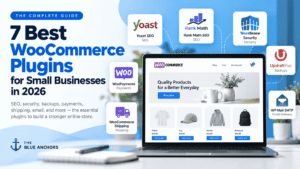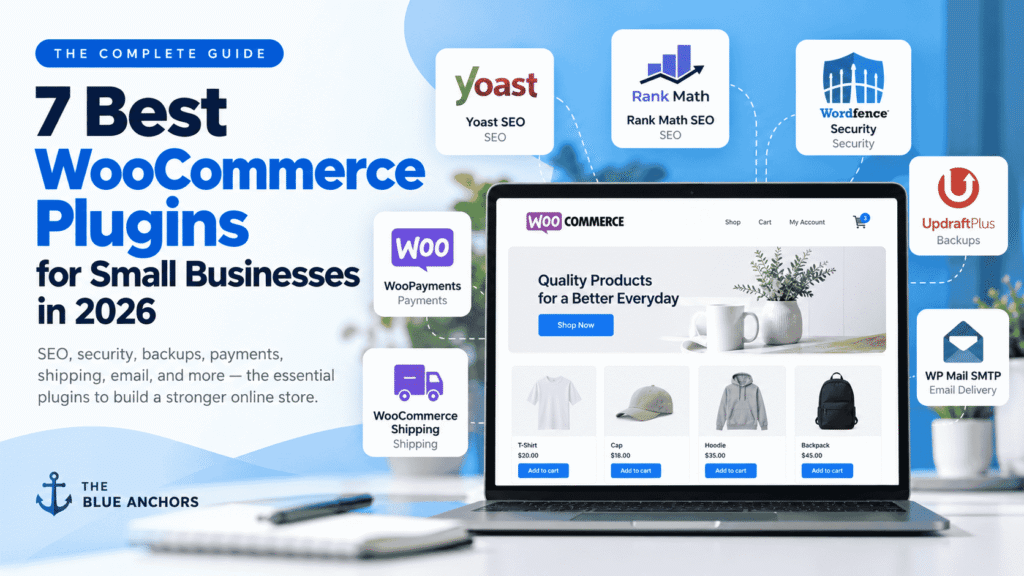
7 Best WooCommerce Plugins for Small Businesses in 2026
The right WooCommerce plugins can help you improve search visibility, protect your store, create reliable backups, accept payments, manage shipping, and make sure important customer emails reach their destination. The challenge is choosing useful tools without making your website unnecessarily complicated.
WooCommerce is flexible because you can extend your store with plugins and integrations. However, installing every tool that looks useful can introduce overlapping features, extra maintenance, compatibility problems, and performance issues.
This guide covers seven practical plugin choices for small businesses. It explains what each tool does, when to use it, and what to check before installing it.
Updated: October 2026 · Category: WooCommerce · Reading time: approximately 9 minutes
Quick Answer: Which WooCommerce Plugins Should You Install?
Start with one SEO plugin, a security solution, a reliable backup method, a compatible payment gateway, and the tools required for your shipping workflow. Consider Yoast SEO or Rank Math SEO for search optimization, Wordfence for security, UpdraftPlus for backups, and WooPayments if your business and country are eligible. Add WP Mail SMTP when you need a more reliable transactional email setup.
You do not need all seven tools immediately. Choose based on your store’s actual needs, and avoid activating two plugins that perform the same job.
Best WooCommerce Plugins at a Glance
| Plugin | Primary purpose | Best for | Important consideration |
|---|---|---|---|
| Yoast SEO | SEO | Guided SEO settings | Use instead of another primary SEO plugin. |
| Rank Math SEO | SEO | An alternative SEO toolkit | Compare features with your existing setup. |
| Wordfence Security | Security | Firewall and malware-scanning tools | Review configuration and premium features. |
| UpdraftPlus | Backups | Scheduled backups and restoration | Keep backups separate from your website. |
| WooPayments | Payments | Eligible merchants | Check country availability and fees. |
| WooCommerce Shipping | Shipping labels | Eligible stores needing label tools | The documented label service has US-specific requirements. |
| WP Mail SMTP | Email delivery | Order-email delivery troubleshooting | Configure a supported mail provider. |
Features, plans, integrations, and regional availability can change. Check the official listing and documentation before installing or purchasing a tool.
1. Yoast SEO: Optimize Product and Category Pages
Yoast SEO
View official plugin page →
Search visibility matters when potential customers look for the products you sell. Yoast SEO provides tools that help you manage important on-page SEO elements and review content before publishing.
For a WooCommerce store, useful SEO work includes writing descriptive product titles, improving product descriptions, creating meaningful category pages, and making sure search engines can understand your website structure.
Why consider Yoast SEO?
- Helps manage SEO titles and meta descriptions.
- Provides content analysis and readability guidance.
- Supports important technical SEO settings.
- Offers a familiar workflow for WordPress users.
What to consider
SEO plugins provide guidance; they do not guarantee rankings. Results also depend on product quality, useful content, site performance, internal linking, competition, and other search factors.
Best choice if: You prefer a guided SEO workflow for managing essential on-page settings.
View Yoast SEO on WordPress.org →2. Rank Math SEO: An Alternative SEO Toolkit
Rank Math SEO
View official plugin page →
Rank Math is another WordPress SEO plugin. Its toolkit includes SEO configuration options and, depending on the version and setup, schema-related features, content analysis, and additional optimization tools.
Why consider Rank Math?
- Provides controls for important on-page SEO settings.
- Offers schema-related tools and other SEO features.
- Lets you compare different optimization workflows.
- Has free and paid feature options, depending on your needs.
Should you install Yoast and Rank Math together?
Generally, choose one as your primary SEO plugin. Running multiple SEO plugins with overlapping responsibilities can create duplicate metadata or conflicting configurations. If you switch plugins, follow the official migration instructions and review your existing settings.
Best choice if: You have compared the feature sets and prefer Rank Math’s workflow for managing your store’s SEO.
View Rank Math SEO on WordPress.org →3. Wordfence Security: Help Protect Your Store
Wordfence Security

View official plugin page →
An online store handles important information, including customer accounts, order details, and administrative access. Security should therefore be part of your store’s basic maintenance routine.
Wordfence offers WordPress security features such as a web application firewall, malware scanning, and login security tools. The exact capabilities and update access depend on the plan you use.
Why consider Wordfence?
- Provides firewall-related protection features.
- Can scan your WordPress installation for security concerns.
- Offers tools for monitoring and securing login activity.
- Provides additional paid options for businesses needing more features.
Security practices to combine with the plugin
- Use strong, unique passwords and enable two-factor authentication where appropriate.
- Keep WordPress, WooCommerce, themes, and plugins updated.
- Give each team member only the access they need.
- Remove unused plugins and themes.
- Maintain backups that can be restored if your website is compromised.
Important: No security plugin can guarantee that a website will never be compromised. Review alerts, configure tools correctly, and maintain a recovery plan.
Best choice if: You want a dedicated WordPress security tool and are prepared to maintain its settings.
View Wordfence Security on WordPress.org →4. UpdraftPlus: Back Up Your Website
UpdraftPlus
View official plugin page →
Updates, configuration mistakes, hosting problems, and security incidents can disrupt a store. A recent backup gives you a recovery option when something goes wrong.
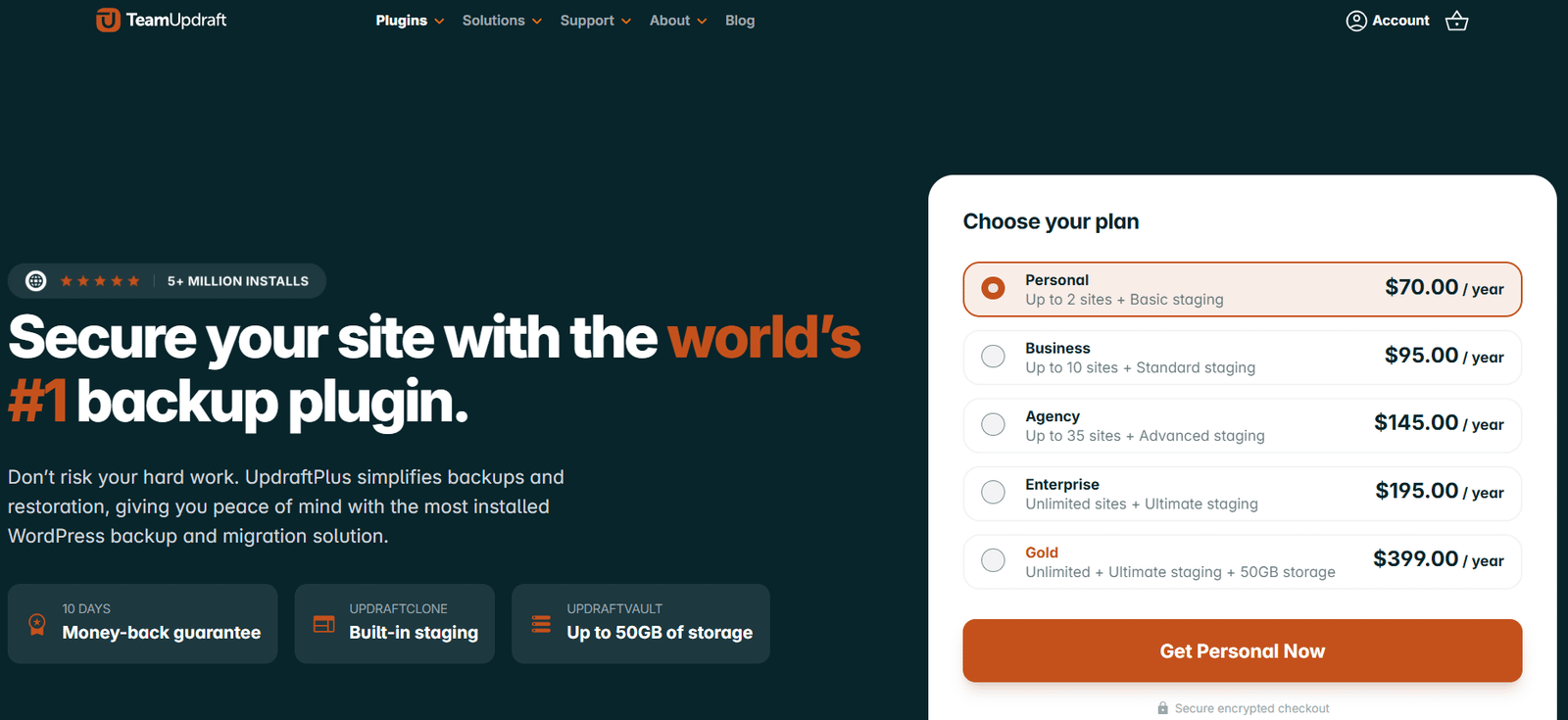
UpdraftPlus provides backup and restoration features for WordPress. Depending on your configuration and plan, it can support scheduled backups and storage destinations outside your website’s hosting environment.
Why consider UpdraftPlus?
- Helps create backups of important website data.
- Provides restoration tools.
- Can support scheduled backup workflows.
- Offers remote storage integrations and additional paid features.
How to approach backups for WooCommerce
- Choose a backup schedule that matches how frequently your store changes.
- Keep copies in a secure location separate from your website’s hosting account.
- Check that both the database and required website files are included.
- Review how orders and customer activity will be handled when restoring a backup.
- Test your restoration process in a safe environment before relying on it in an emergency.
Best choice if: You want a dedicated backup workflow and a practical way to prepare for website recovery.
View UpdraftPlus on WordPress.org →5. WooPayments: Accept Payments in Supported Countries
WooPayments
View official WooPayments page →
A payment gateway lets customers pay for their orders online. WooPayments integrates payment management into the WooCommerce experience, allowing eligible merchants to handle supported payments and review transactions from their store dashboard.
Why consider WooPayments?
- Integrates with the WooCommerce store management workflow.
- Provides transaction and payout management tools.
- Supports payment methods based on merchant eligibility and location.
- Offers documentation to help with setup and account management.
What should you check before installing?
- Whether your business country is supported.
- Which payment methods are available to your customers.
- Transaction, international payment, and currency-conversion fees.
- Verification requirements, payout timing, and refund procedures.
- Compatibility with your store’s checkout and other active extensions.
WooPayments is not a fee-free transaction service. Rates and applicable charges vary by country, payment method, and transaction circumstances. Confirm the latest details in the official documentation before enabling it.
Best choice if: Your business meets the eligibility requirements and you prefer integrated payment management.
Explore WooPayments →6. WooCommerce Shipping: Simplify Shipping Labels Where Supported
WooCommerce Shipping
View official shipping documentation →
Shipping can become time-consuming as orders increase. A suitable shipping integration can help streamline label creation and order fulfillment, depending on the carriers and services available to your business.
WooCommerce Shipping offers an integrated shipping-label workflow for eligible stores. Its documented label service has specific regional requirements, including US-based stores using US dollars. It should not be assumed to be the right solution for every country.
Before choosing a shipping plugin
- Check supported countries, carriers, and service areas.
- Confirm whether you need shipping labels, live checkout rates, tracking, or all three.
- Check whether your preferred carriers are supported.
- Confirm how shipping zones, package dimensions, and delivery rules are configured.
- Review fees and any account requirements.
If the official WooCommerce Shipping service does not meet your regional requirements, look for a carrier integration or shipping platform that explicitly supports your business location and delivery destinations.
Best choice if: Your store meets the service requirements and its label-printing workflow matches your fulfillment process.
Explore WooCommerce Shipping documentation →7. WP Mail SMTP: Improve Transactional Email Setup
WP Mail SMTP
View official plugin page →
WooCommerce sends important transactional emails, including order confirmations and customer account messages. If your store’s email configuration is unreliable, customers may not receive messages they expect.
WP Mail SMTP helps configure WordPress to send messages through a supported mailer or email service instead of relying solely on the server’s default mail setup.
Why consider WP Mail SMTP?
- Helps connect WordPress to a supported email-sending service.
- Provides configuration tools for the selected mailer.
- Can help diagnose problems with WordPress email sending.
- Offers additional features in paid versions.
What to check during setup
- Choose an email service that meets your store’s requirements.
- Follow the provider’s authentication and sender-verification instructions.
- Send test emails and test actual WooCommerce order notifications.
- Review spam placement and email authentication, including SPF, DKIM, and DMARC where applicable.
- Protect mailer credentials and API keys.
An SMTP plugin cannot guarantee that every message will reach the inbox. Correct provider configuration, sender reputation, and email authentication also matter.
Best choice if: Your store has email delivery problems or needs a more deliberate transactional email setup.
View WP Mail SMTP on WordPress.org →Which WooCommerce Plugins Should You Install First?
You do not have to install every plugin on this list on the same day. Start with the tools that address the biggest risks and operational needs of your store.
| Priority | What to set up | Why it matters |
|---|---|---|
| 1. Essential | Backups and a basic security plan | Helps prepare for mistakes, failures, and security incidents. |
| 2. Essential | Payment gateway and checkout testing | Customers need a working, supported way to pay. |
| 3. Essential | One SEO plugin | Helps manage important search optimization settings. |
| 4. As needed | Email delivery configuration | Useful when transactional email needs attention. |
| 5. As needed | Shipping integration | Choose according to carriers, countries, rates, labels, and fulfillment needs. |
How to Choose WooCommerce Plugins Without Slowing Down Your Store
Plugin count alone does not determine website speed. A single poorly optimized plugin can create problems, while several well-maintained plugins may work efficiently together. The goal is to install only what you need and maintain it properly.
1. Check the official plugin listing
Review the plugin’s purpose, documentation, update history, support information, compatibility details, and known limitations. For commercial extensions, read the current plan details and refund terms before purchasing.
2. Avoid overlapping features
Two plugins that handle the same SEO, caching, security, or checkout function may create conflicts. Check what your theme, hosting service, and existing plugins already provide before adding another tool.
3. Test on a staging site when possible
Before installing or updating a major extension, test it in a staging environment. Check product pages, cart behavior, checkout, payment processing, order emails, and the WordPress dashboard.
4. Keep backups and a rollback plan
Create a recent backup before significant changes. Make sure you know how to restore the site and protect recent customer orders if a rollback becomes necessary.
5. Monitor performance and errors
Test important pages after making changes. Watch for slow checkout pages, JavaScript errors, failed emails, and compatibility warnings. If a problem appears after adding a plugin, investigate the change rather than installing more plugins to compensate.
6. Review plugins regularly
Remove extensions that are no longer needed, but first confirm that deactivating them will not remove essential functionality. Keep the remaining plugins updated and review their settings periodically.
Common WooCommerce Plugin Mistakes to Avoid
- Installing multiple plugins that perform the same job.
- Choosing extensions based only on a large feature list.
- Ignoring regional availability for payment and shipping services.
- Assuming a backup is useful without checking restoration options.
- Installing unmaintained plugins without evaluating the risks.
- Making checkout changes without testing an actual order workflow.
- Ignoring plugin conflicts after updates.
- Assuming an SEO plugin alone will improve search rankings.
Frequently Asked Questions
What are the best free WooCommerce plugins for small businesses?
Several tools on this list offer free versions or free-to-install options, including Yoast SEO, Rank Math SEO, Wordfence, UpdraftPlus, and WP Mail SMTP. Features may be limited, and some services have separate charges. Choose tools based on your requirements rather than installing every free plugin.
How many plugins should a WooCommerce store have?
There is no universal ideal number. What matters is whether each plugin is necessary, maintained, compatible with your setup, and reasonably efficient. Keep your plugin list focused and test the store after significant changes.
Can I use Yoast SEO and Rank Math together?
It is generally better to use one as your primary SEO plugin because their responsibilities may overlap. If you switch plugins, follow official migration guidance and verify metadata, schema settings, redirects, and other important SEO configurations.
Do I need a security plugin for WooCommerce?
A dedicated security plugin can be a useful part of your security plan, but it is not a complete solution by itself. Updates, strong authentication, least-privilege access, secure hosting, monitoring, and backups are also important.
Is WooPayments available in every country?
No. Availability and payment methods depend on the merchant’s location and eligibility. Check the current official WooPayments country list, account requirements, and transaction fees before building your checkout around it.
Is WooCommerce Shipping suitable for every store?
No. The documented shipping-label service has specific eligibility and regional requirements. Check the official documentation and compare other carrier integrations if you need live checkout rates, international support, or a different fulfillment workflow.
Can too many plugins slow down my WooCommerce website?
Plugins can affect performance depending on their code, database queries, scripts, external requests, and configuration. The number alone does not determine speed. Keep only necessary plugins and measure performance after major changes.
Should I pay for premium plugins immediately?
Not necessarily. Start with the essential features your business needs, then upgrade when a paid feature solves a real operational problem. Check recurring fees, licensing, support, and compatibility before purchasing.
Sources and Further Reading
The following official plugin listings and documentation pages provide additional information about features, setup, eligibility, and limitations.
- Yoast SEO — Official WordPress plugin listing
- Rank Math SEO — Official WordPress plugin listing
- Wordfence Security — Official WordPress plugin listing
- UpdraftPlus — Official WordPress plugin listing
- WooPayments — Official product page
- WooPayments — Fees documentation
- WooCommerce Shipping — Official documentation
- WP Mail SMTP — Official WordPress plugin listing
- WooCommerce — Extensions documentation
Recommended Next Reads
Build a Better WooCommerce Store
Start with the essentials, choose compatible tools, and improve your store one step at a time. Explore more practical guides to help you build and maintain your website.
Explore WooCommerce Guides →Editorial note: This guide compares tools by their intended use and published documentation. Features, pricing, and availability can change. Confirm compatibility with your hosting environment, theme, WooCommerce version, and business location before installing.